iBall Drivers
by Best IT World (India) Pvt. Ltd.
iBall is a popular electronics brand based in Mumbai, India. The company was formed in 2001, and has grown to include a customer base of over 100 million users. iBall brand electronics include everything from keyboards and mice, to laptops and tablets, to many other computer accessories like speakers, headphones, and web cameras. Some of the most popular products from iBall include the Magical Duo 2 keyboard and mouse, the TOTO Smart HD camera and the Freego G100 mouse.
Find iBall Device Drivers by Model
Popular iBall Device Categories
Featured iBall Downloads
Update iBall Device Drivers Manually
To get the latest driver, including Windows 11 drivers, you can choose from the above list of most popular iBall downloads. Click the "Download driver" button next to the matching model name. After you complete your download, move on to Step 2.
If your driver is not listed and you know the model name or number of your iBall device, you can use it to search our driver archive for your iBall device model. Simply type the model name and/or number into the search box and click the Search button. You may see different versions in the results. Choose the best match for your PC and operating system.
If you don't know the model name or number, you can start to narrow your search down by choosing which category of iBall device you have (such as Printer, Scanner, Video, Network, etc.). Start by selecting the correct category from our list of iBall Device Drivers by Category above.
iBall updates their drivers regularly. To get the latest Windows 11 driver, you may need to go to the iBall website to find the driver for to your specific Windows version and device model.
Once you download your new driver, then you need to install it. To install a driver in Windows, you will need to use a built-in utility called Device Manager. It allows you to see all of the devices recognized by your system, and the drivers associated with them.
In most cases, you will need to reboot your computer in order for the driver update to take effect.
Tech Tip: Driver downloads and updates come in a variety of file formats with different file extensions. For example, you may have downloaded an EXE, INF, ZIP, or SYS file. Each file type has a slighty different installation procedure to follow. For more help, visit our Driver Support Page for step-by-step videos on how to install drivers for every file type.
Update Drivers Automatically
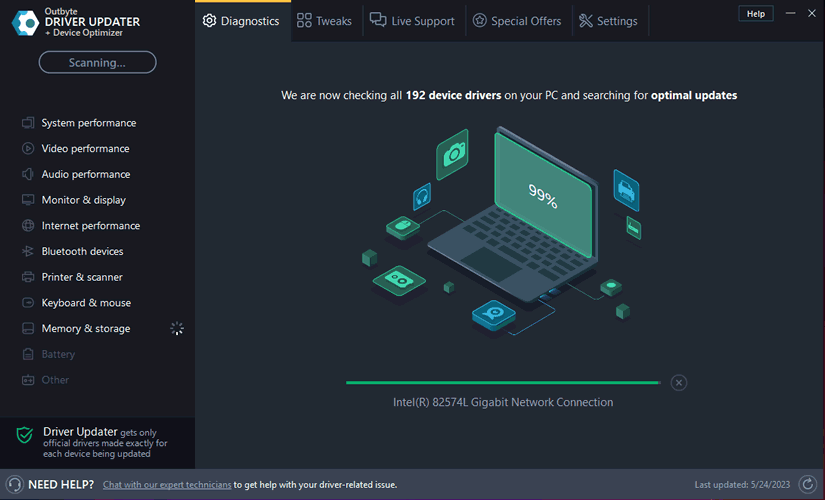
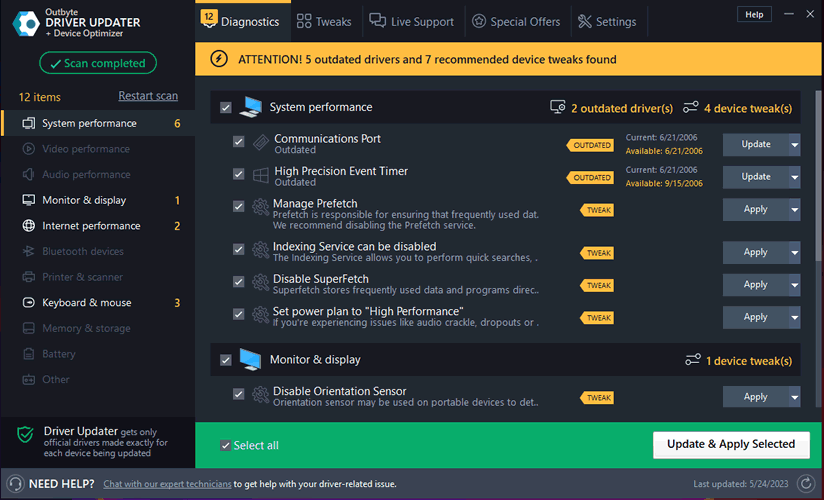
When the scan is complete, the driver update utility will display a results page showing which drivers are missing or out-of-date. You can update individual drivers, or all of the necessary drivers with one click.
With automatic driver updates, you will save time and find the right drivers quickly and easily.