Diamond Multimedia Drivers
by Diamond Multimedia
The best way to fix your PC to run at peak performance is to update your drivers. If your system is slow, unresponsive or crashes often, the problem may be with your drivers. Sometimes, after upgrading to a newer operating system such as Windows 11, problems can occur because your current driver may only work with an older version of Windows. To download and update your drivers, follow the instructions below.
Find Diamond Multimedia Device Drivers by Model
Popular Diamond Multimedia Device Categories
Featured Diamond Multimedia Downloads
Popular Diamond Multimedia Hardware IDs
Update Diamond Multimedia Device Drivers Manually
To get the latest driver, including Windows 11 drivers, you can choose from the above list of most popular Diamond Multimedia downloads. Click the "Download driver" button next to the matching model name. After you complete your download, move on to Step 2.
If your driver is not listed and you know the model name or number of your Diamond Multimedia device, you can use it to search our driver archive for your Diamond Multimedia device model. Simply type the model name and/or number into the search box and click the Search button. You may see different versions in the results. Choose the best match for your PC and operating system.
If you don't know the model name or number, you can start to narrow your search down by choosing which category of Diamond Multimedia device you have (such as Printer, Scanner, Video, Network, etc.). Start by selecting the correct category from our list of Diamond Multimedia Device Drivers by Category above.
Diamond Multimedia updates their drivers regularly. To get the latest Windows 11 driver, you may need to go to the Diamond Multimedia website to find the driver for to your specific Windows version and device model.
Once you download your new driver, then you need to install it. To install a driver in Windows, you will need to use a built-in utility called Device Manager. It allows you to see all of the devices recognized by your system, and the drivers associated with them.
In most cases, you will need to reboot your computer in order for the driver update to take effect.
Tech Tip: Driver downloads and updates come in a variety of file formats with different file extensions. For example, you may have downloaded an EXE, INF, ZIP, or SYS file. Each file type has a slighty different installation procedure to follow. For more help, visit our Driver Support Page for step-by-step videos on how to install drivers for every file type.
Update Drivers Automatically
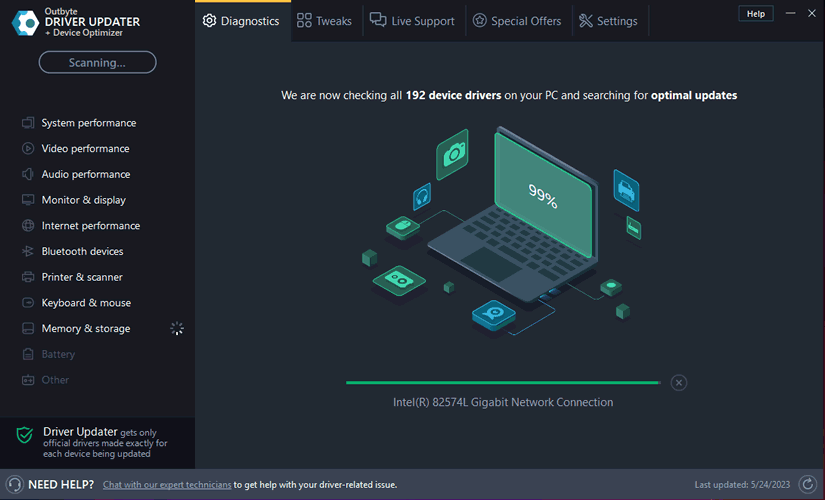
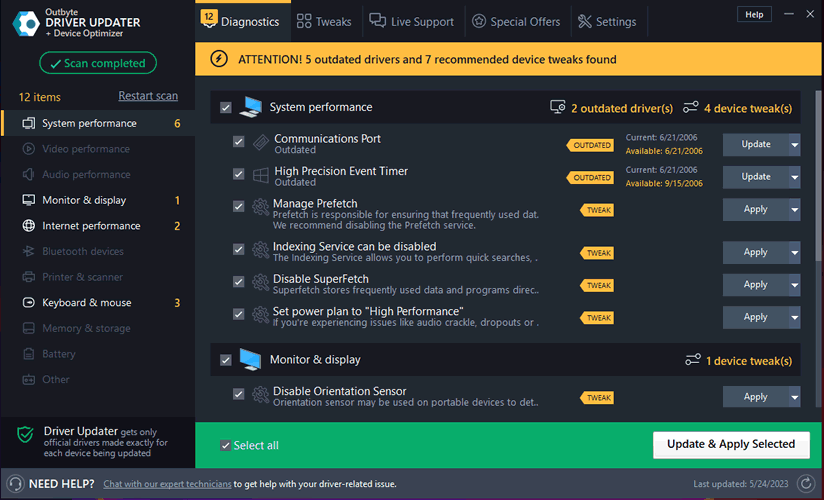
When the scan is complete, the driver update utility will display a results page showing which drivers are missing or out-of-date. You can update individual drivers, or all of the necessary drivers with one click.
With automatic driver updates, you will save time and find the right drivers quickly and easily.